
Google Chrome undoubtedly is the market leader when it comes to web browsers, with over 65% of the market share. The simple, user-oriented interface and faster performance attract users. But for many of us, Chrome becomes slow and sluggish over time. And it’s not always a browser-centric issue!
I have been using Chrome on multiple devices: a Windows 10 PC, a Windows 11 PC, a MacBook, an Android phone, and my iPhone. To my surprise, it was the slowest on Android, but it could be the phone’s outdated hardware to blame. Nevertheless, with the right settings in place, I was able to speed up Google Chrome and make it run faster than ever on all these devices.
Here’s all I learnt and applied over the weekend!
Why is Chrome suddenly so slow?
- You are running an outdated version of Google Chrome
- Too many extensions are installed
- Ads and scripts on websites are slowing down Chrome
- Performance-oriented settings are not activated
- The DNS server is slow
How do I make Chrome run faster?
1. Update Google Chrome
For every software out there, it’s vital to stay up-to-date with the latest version for optimal results, in terms of performance, stability, and security. When you run an outdated or out-of-support version, it doesn’t feature the latest upgrades and security patches, resulting in slow performance. So, your primary approach when trying to speed up Google Chrome should be to update the browser.
- To update Google Chrome, open the browser > click on the ellipsis (three dots) near the top right > go to Help > choose About Google Chrome > wait for the latest updates to be downloaded > relaunch the browser to apply the changes.

If you just updated Google Chrome after a long time, be ready to witness an immediate boost in performance!
2. Remove non-critical extensions
Browser extensions, although meant to enhance functionality, often result in slow performance, especially when multiple extensions are installed. Think of it this way: if your PC has too many active apps, the performance will be affected. Similarly, a browser with too many active extensions is bound to slow down a little.
I am not saying that you remove all the extensions. Keep the ones you actively rely on, say Grammarly, Google Docs Offline, or an ad blocker (more on it later). The idea is to remove extensions that are no longer necessary or the ones automatically added by third-party software.
- To remove extensions in Google Chrome, click on the Extensions icon near the top right > select Manage extensions > click Remove under non-critical entries > confirm the change > relaunch the browser and check for improvements.

3. Enable Memory Saver and Preload Pages
Google Chrome has two key performance-oriented settings that will speed it up, ensure optimal resource allocation, and load pages faster. These are Memory Saver and Preload Pages. Thousands of users reported an immediate performance boost after enabling these two.
- Memory Saver: Minimizes RAM consumption by inactive tabs and allocates these freed-up resources to the active browser tabs, improving Chrome’s speed and responsiveness.
- Preload Pages: When enabled, Google Chrome automatically preloads webpages it believes you will visit next, based on your browsing history and usage patterns.
Moving on to how you can enable Memory Saver and Preload Pages in Google Chrome:
- To turn on Memory Saver in Chrome, open the browser > click on the ellipsis (three dots) near the top right > select Settings > go to Performance > enable the toggle for Memory Saver.

- To turn on Preload Pages in Chrome, open the browser > click on the ellipsis (three dots) near the top right > select Settings > go to Performance > enable the toggle for Preload Pages.

4. Install an ad blocker
If you didn’t know, loading ads and scripts on websites you visit takes up a lot of resources, which slows down Google Chrome, or any other browser for that matter. Besides, these ads are often misplaced, covering key areas of the webpage. So, it’s advisable to use an ad blocker.
While there are several reliable options on the Chrome Web Store, I always recommend picking a free one initially. This way, you can verify whether the ad blocker is delivering any performance boosts on your device, and only then proceed with a subscription-based plan.
I have been using AdGuard AdBlocker (free version) for the last few months, and it has done a splendid job blocking obtrusive ads and scripts. You could choose the same or pick another extension that works better.

To clarify, neither AIRespondsBlog nor I earn any commission from purchases you make on the links provided here. The recommendations are based solely on a software/service’s effectiveness.
5. Enable/disable Hardware Acceleration in Chrome
Hardware Acceleration is a built-in feature that allows you to speed up Google Chrome. When enabled, the browser automatically offloads certain resource-intensive tasks, like online gaming or video and image rendering, to the GPU (Graphics Processing Unit). Since the GPU handles and processes such operations faster than the CPU, Chrome’s performance improves.
But, enabling Hardware Acceleration can also cause the browser to freeze or crash. So, if you are not already utilizing the feature, enable it and check for improvements. If this helps speed up Google Chrome, continue with the same settings. Otherwise, disable Hardware Acceleration right away!
- To enable/disable Hardware Acceleration in Google Chrome, open the browser Settings > go to System > turn on the toggle for Use graphics acceleration when available > click on Relaunch to apply the changes.

6. Switch to Google’s DNS server
A DNS (Domain Name System) analyzes human-understandable domain names and identifies the corresponding IP addresses. For instance, when you enter google.com into the browser, the system quickly fetches the corresponding IP address from the DNS and loads the website. Think of DNS as the Internet’s phonebook!
Now, how fast a DNS translates a domain name into the corresponding IP address is key to the browser’s performance, at least in our eyes. That’s why using a reliable DNS server, like the Google Public DNS, helps speed up Google Chrome.
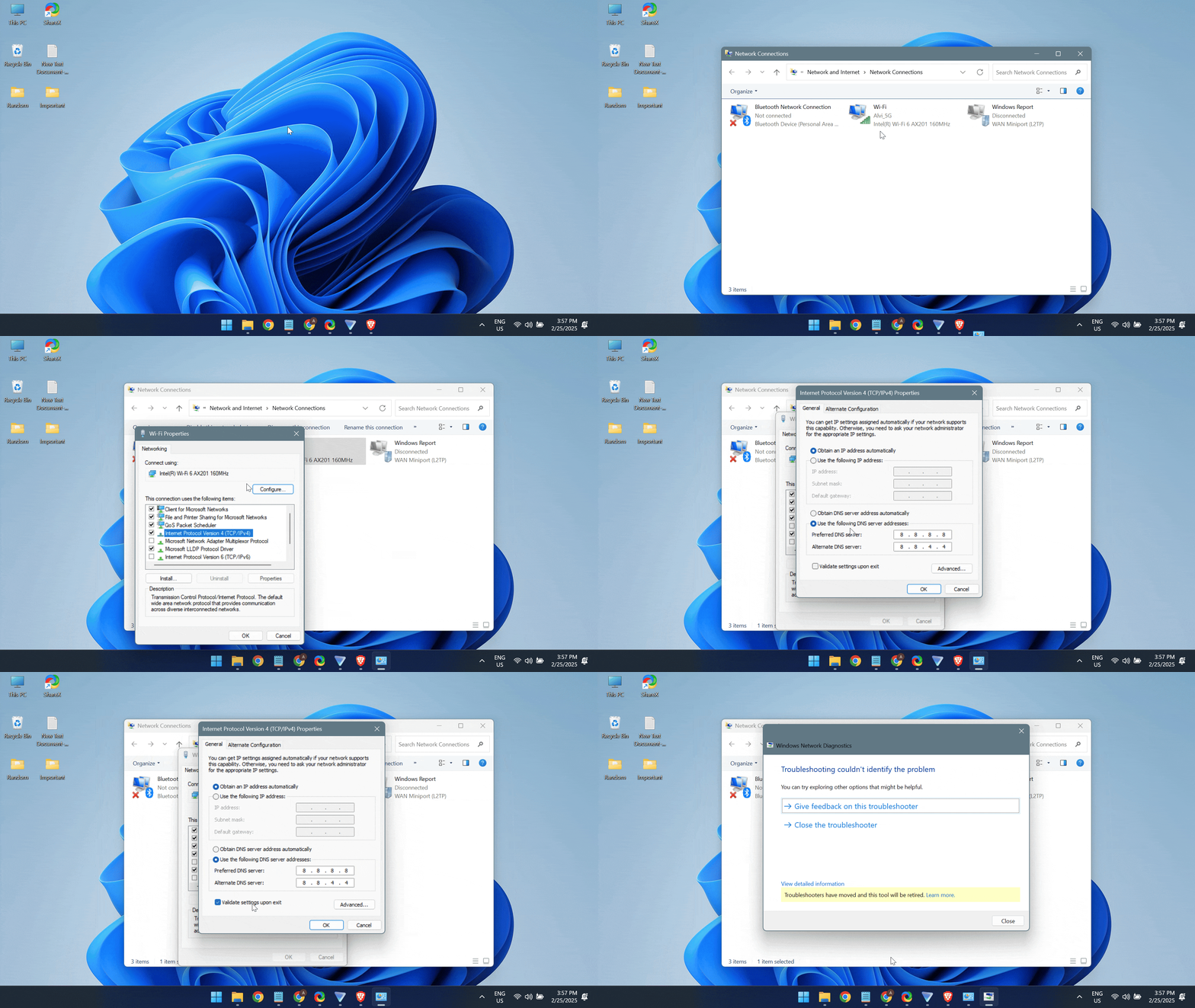
- To switch to Google’s DNS server, press Windows + S to open Search, type View network connections > click on the relevant result > right-click on the active network adapter (Wi-Fi or Ethernet) > choose Properties > select Internet Protocol Version 4 (TCP/IPv4) > click Properties > choose Use the following DNS server addresses > enter 8.8.8.8 and 8.8.4.4 as the preferred and alternate DNS servers respectively > check Validate settings upon exit > click OK.
7. Turn on Enhanced Protection in Chrome
When it comes to speeding up a Windows PC, I always recommend scanning it for malware and viruses because these consume significant system resources and slow things down. The same applies to browsers. If a browser is infected, it won’t deliver optimal performance.
Now, in the absence of the Chrome Cleanup Tool, which was discontinued in March 2023, you have to rely on integrated features like Enhanced Protection to prevent malware infection in Google Chrome.
- To enable Enhanced Protection on Chrome, open the browser Settings > go to Privacy and security > click on Security > choose Enhanced protection under Safe Browsing.

8. Clear the browsing data
When was the last time you cleared the browsing data on Google Chrome? Can’t recall? Neither could I!
But surprisingly, clearing browsing data turned out to be a simple way to speed up Google Chrome. When I did that, the frequently visited websites took a little longer to load upon the first visit, but on subsequent visits, the loading time was comparatively lower. That’s because, over time, browsing data and cache may corrupt, leading to performance-related issues.
- To clear the browsing data on Google Chrome, launch the browser > press Ctrl + Shift + Delete > select All time from the Time range dropdown menu > tick all the checkboxes > click on Delete data > confirm the change.

9. Reset Google Chrome
Could it be the misconfigured settings to blame for a slow Google Chrome browser? The answer is “Yes“. Often, we apply the settings suggested by others without truly realizing the implications, and over time, this may affect Chrome’s performance. If that’s the case, resetting Google Chrome will speed it up in no time!
- To reset Google Chrome, open the browser Settings > navigate to Reset settings from the left pane > click Restore settings to their original defaults > choose Reset settings to confirm the change.

10. Optimize the network and hardware
If you still haven’t achieved the desired performance from Chrome, perhaps it’s the system’s hardware or the Internet plan to blame. When the PC is low on RAM or disk space, there won’t be enough resources for Google Chrome, slowing it down. Similarly, if your network setup isn’t optimal, loading time would be higher. Here’s what I recommend to speed up Google Chrome, hardware-wise:
- Add more RAM to the PC or increase the Virtual Memory.
- Make sure there’s sufficient free space on the drive where Google Chrome is installed.
- Update the driver for the active network adapter.
- Switch to Ethernet if you are currently using Wi-Fi.
- Upgrade your Internet plan to one with a higher speed.
I recall having a 128 Kbps Internet plan 17 years ago when I got my first wireless setup. Would that Internet speed still work? No, right! Now, I am on a 200 Mbps plan. So, you have to upgrade. Modern-day websites require a high Internet speed to load quickly.
Also Read: Disk Cleanup vs Storage Sense
What if I can’t speed up Google Chrome?
If Google Chrome is slow even after applying all these tricks, you are better off with another browser. Let’s admit it, Google Chrome is a resource hog. On my PC, with 5-7 active tabs, Chrome makes up for more than 50% of the RAM usage. That’s far too high, especially when browsers like Microsoft Edge, Firefox, and Brave exist.
Or if you are using an old computer with bare-minimal configurations, you can consider browsers like Opera and Vivaldi. They consume fewer resources and are ideal for slow PCs.
WindowsExplained earns no commission from the products listed here. They are included solely for their effectiveness!
That’s all I learned and applied over the last weekend, trying to speed up Google Chrome. I will be honest, don’t expect Chrome to load pages instantly after you apply these tips. The system hardware is a major constraint that cannot be ignored. Besides, several websites are ill-designed and will take time to load up. There’s nothing you can do. These methods are designed to improve Chrome’s performance and ensure a secure, error-free experience!
Did I miss any tips or tricks? If so, share them with our readers in the comments section.

With over five years of experience in the tech industry, Kazim excels at simplifying complex topics, making them accessible to tech enthusiasts and general readers alike. He has contributed to several renowned publications worldwide, including WindowsReport and Allthings.how, bringing insightful coverage of key developments in the field.
Kazim has extensively covered the Windows ecosystem, from the early days of Windows 7 to Windows 11. Unlike many in the field, he’s optimistic about Windows 11, calling it the most user-oriented iteration to date.
When he’s not writing, you’ll find Kazim planning weekend getaways or diving into tech verticals beyond his expertise.