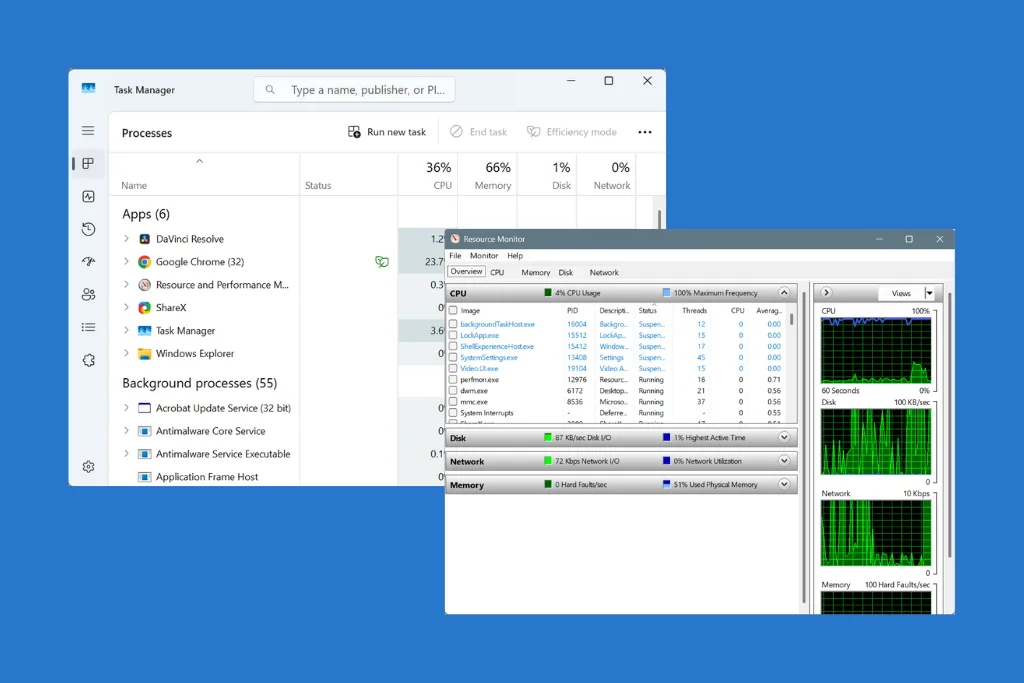
The built-in Task Manager and Resource Monitor in Windows are key tools to analyze the system’s performance and monitor the active resource consumption. But the question arises, why has Windows rolled out two utilities that perform exactly the same job? It’s because they are not identical and serve very different but equally important purposes!
In the following sections, we will see the differences between Resource Monitor and Task Manager, and find out which is better.
What is the difference between Resource Monitor and Task Manager?
| Resource Monitor | Task Manager | |
| Definition | A utility that gives detailed insights into the active processes, such as disk, memory, or network activity. It provides a more extensive coverage. | A user-friendly utility that lists the active processes and tasks, and the resource consumption of each. |
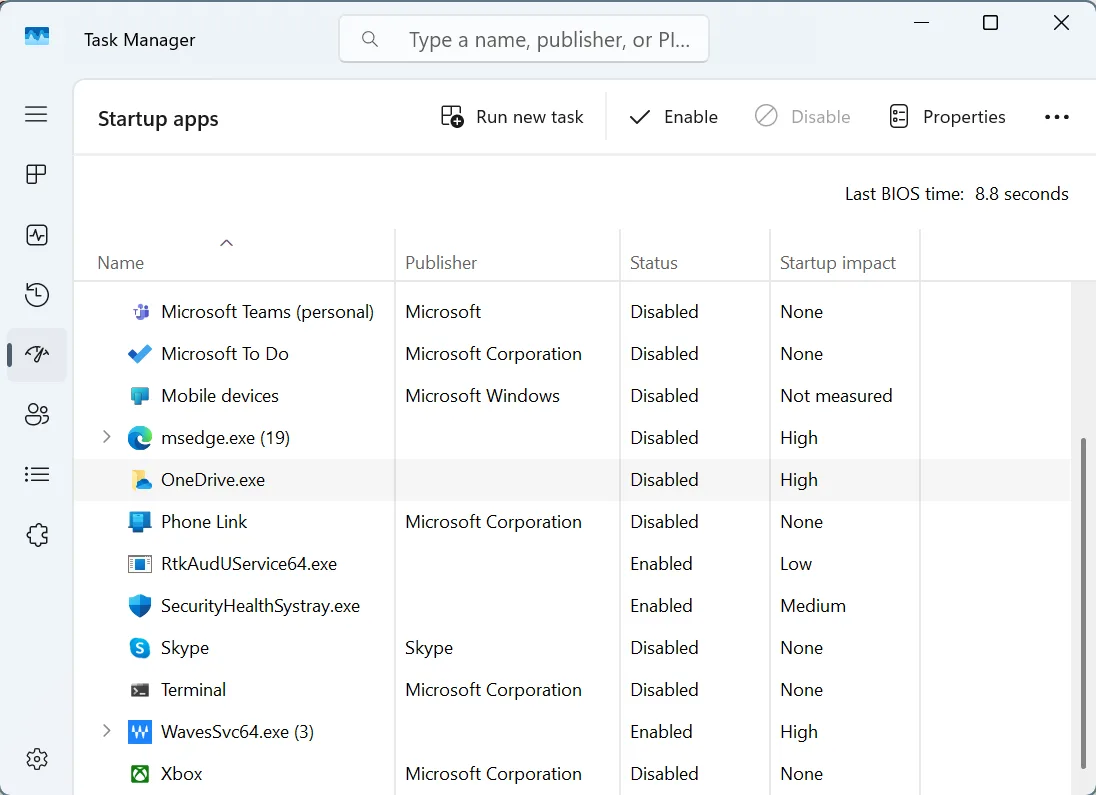
| Use Case | Used for in-depth troubleshooting of performance-related issues, especially performance bottlenecks. | Used to quickly end tasks, check performance, and manage (enable/disable) startup apps. |
| Ease of Use | Slightly more technical, includes graphs and expandable tables, to monitor resource consumption. Allows extensive filtering and customizations. | Sports a user-friendly interface, with dedicated tabs for Processes, Performance, App history, Startup apps, Users, Details, and Services. Minimal filtering and customizations. |
| Advantages | 1. Deep analysis of system activity. 2. Shows file-level and network-level details. | 1. Fast and user-friendly. 2. Built-in task killing function and startup management. |
| Disadvantages | 1. A little too complex for regular Windows users. | 1. Lacks deep, process-level insights. 2. Can’t be used for extensive troubleshooting. |
| How to Open | Search for Resource Monitor, or use resmon.exe in the Run command. | Search for Task Manager, or use the Ctrl + Shift + Esc keyboard shortcut. |
Which is better, Resource Monitor or Task Manager?
If we compare the Resource Monitor and Task Manager on accuracy, the former has the edge, while for simplicity, the latter has the upper hand. Frankly speaking, it would be unwise the pick one from the two. They serve very different purposes.
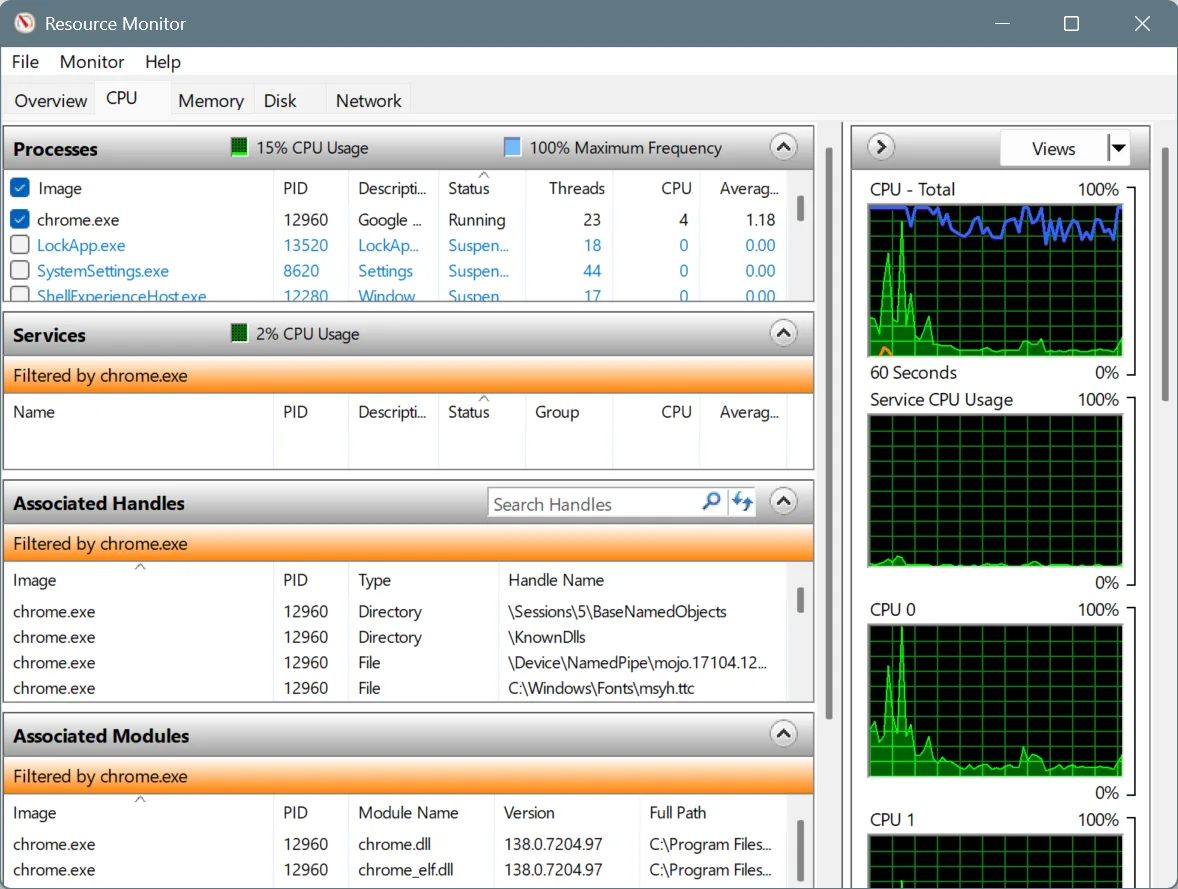
While Task Manager provides a user-friendly overview of the active tasks and startup apps and the option to manage both, the Resource Monitor provides detailed insights, helps troubleshoot problems, and eliminates performance bottlenecks!
You now know how the two, Resource Monitor and Task Manager, stack up and how to make the most out of the built-in utilities in Windows. For regular users, I suggest sticking to Task Manager, unless you are facing performance-related issues with the PC. As for those new to the Resource Monitor, there are several online tutorials to help you use the tool.
Before you leave, discover lesser-known tricks to speed up the Internet and enjoy faster downloads and uploads!
For any queries or to share your experience using the Resource Monitor and Task Manager, drop a comment below.

With over five years of experience in the tech industry, Kazim excels at simplifying complex topics, making them accessible to tech enthusiasts and general readers alike. He has contributed to several renowned publications worldwide, including WindowsReport and Allthings.how, bringing insightful coverage of key developments in the field.
Kazim has extensively covered the Windows ecosystem, from the early days of Windows 7 to Windows 11. Unlike many in the field, he’s optimistic about Windows 11, calling it the most user-oriented iteration to date.
When he’s not writing, you’ll find Kazim planning weekend getaways or diving into tech verticals beyond his expertise.