As a long-time Windows user, 15 years, I suppose, I have rarely had to rely on the Event Viewer, a built-in utility in Windows. And believe me, I have had my share of issues with the PC, be it trouble with the hardware, corrupted system files, or the dreaded Blue Screen of Death (BSoD). But when I had to, the Event Viewer proved to be a great resource, helping me troubleshoot the problem.
So, what does it really do, when is it useful, and when can you safely ignore the warnings in the Event Viewer? Let’s find out!
What is the Event Viewer in Windows?
The Event Viewer in Windows is a built-in tool that records detailed logs of system, security, and application events. It exists so that regular users, like you and me, and administrators can monitor system activity, identify issues, and troubleshoot errors.
By reviewing logs, one can track crashes, failed logins, or software problems, making it essential for diagnosing and maintaining system health.
Here are the main categories of logs you’ll find in Windows Event Viewer:
- Application – Events from apps and programs, like crashes or errors.
- System – Events related to Windows system components, such as drivers or updates.
- Security – Login attempts, account activity, and other security-related events.
- Setup – Details about Windows setup and installation processes.
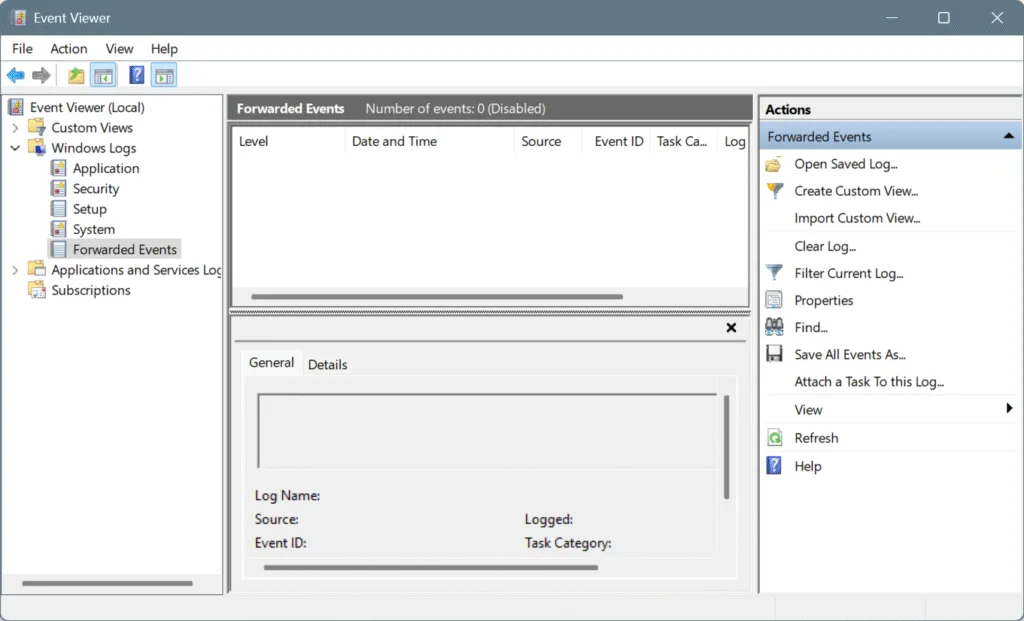
- Forwarded Events – Logs sent from other computers on the network for centralized monitoring.
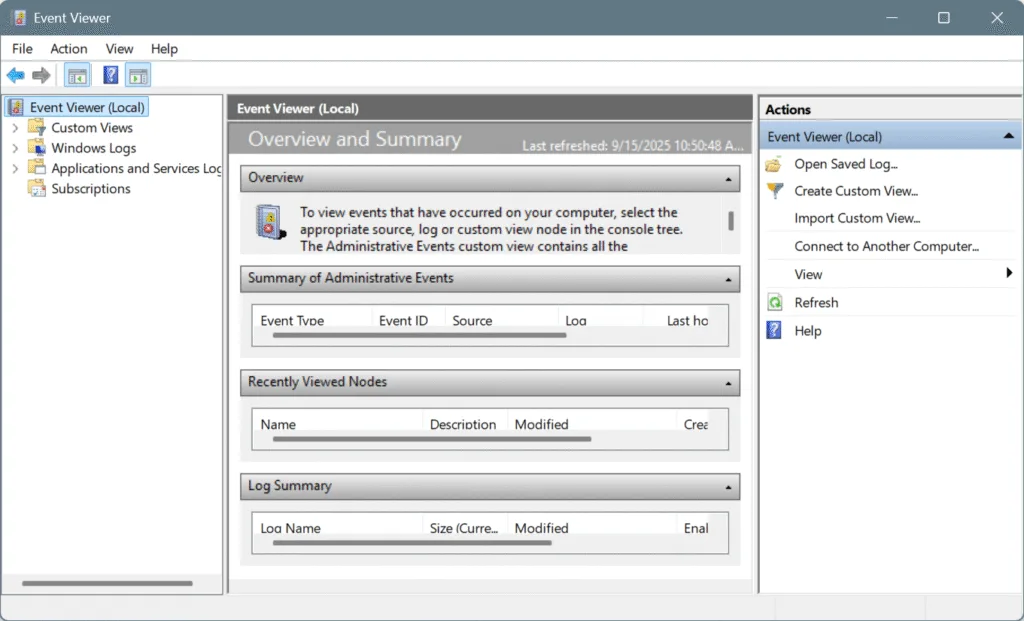
Unless you are a system administrator or are using a PC that’s part of a network, you can safely ignore any logs under “Forwarded Events“. In fact, it will be empty for regular home users, as shown below.
How to open the Event Viewer?
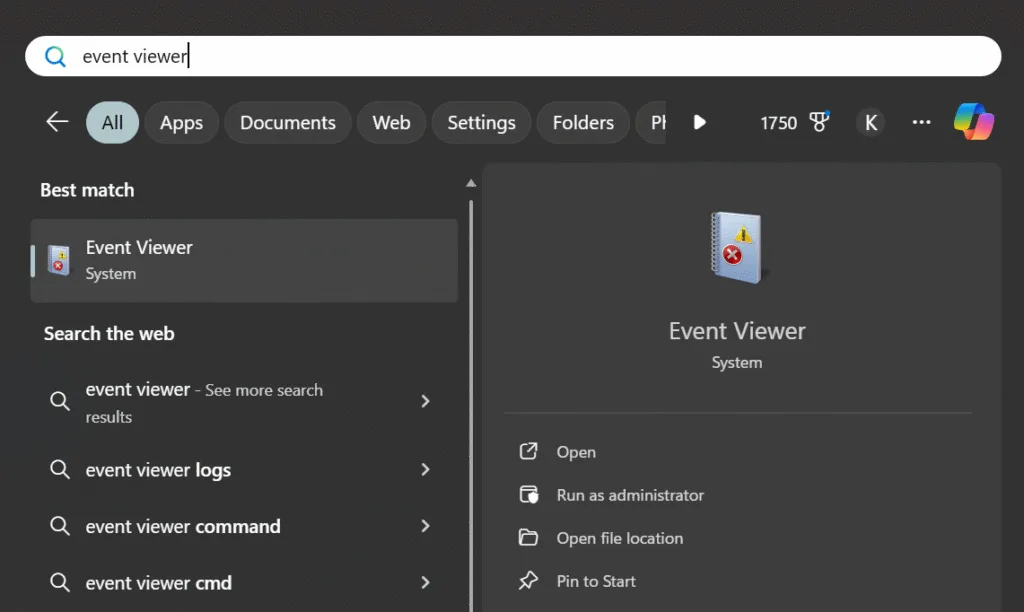
- Press the Windows key to open the Start menu > type Event Viewer > click on the relevant result.
- Press Windows + R to open Run > type eventvwr (or eventvwr.msc) > hit Enter.
How to use the Event Viewer?
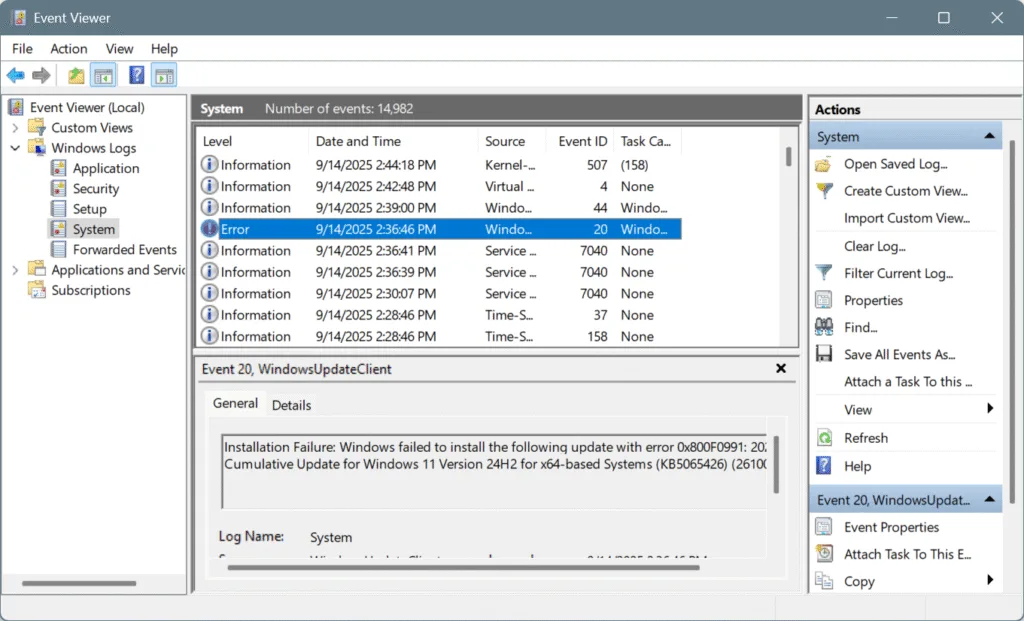
After you open the Event Viewer, expand (double-click) the “Windows Logs” entry on the left. It will show you the five categories that we described earlier. You will find all reports and logs of PC-related issues here.
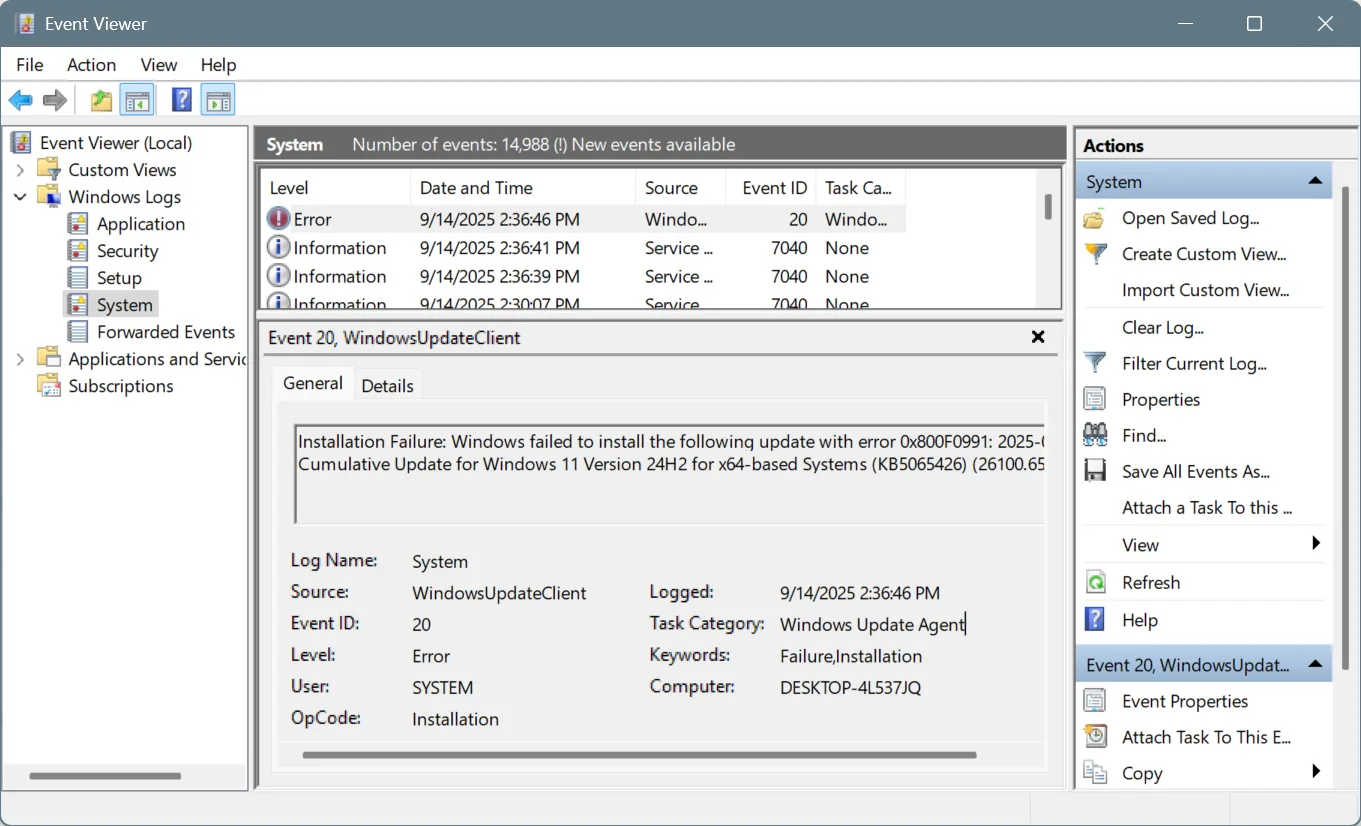
Just go to the relevant category, scroll down to view the logs, and open the one related to the issue you are working on. For instance, I am trying to find the log file for a Windows update error I recently encountered. So, I went to Windows Logs > System > looked for an entry named Error with Event ID 20, and viewed the log file.
It’s that simple, honestly!
Now that you know how to navigate within the Event Viewer, here’s a quick table explaining the different Event IDs, so that you can quickly find log files for major issues in Windows. No more checking all the log files, just look at the Event ID column, find out which corresponds to the issue you are facing, and open the log!
| Event ID | Explanation |
|---|---|
| 19 | A Windows update was installed successfully, no action needed. |
| 20 | A Windows update failed to install. Usually caused by corrupted files, missing prerequisites, or conflicts. |
| 21 | Windows detected new updates that are ready to install. |
| 41 | The computer shut down or restarted unexpectedly, often due to crashes, freezes, or power loss. |
| 55 | Windows found corruption in the file system. This can point to disk errors or improper shutdowns. |
| 51 | A disk input/output error occurred. Could mean a failing hard drive, bad cable, or storage driver issue. |
| 129 | Windows had to reset communication with a storage device. Often linked to SSD/NVMe timeouts or driver issues. |
| 1000 | An application crashed. Windows records which program failed and why. |
| 1001 | A system crash (blue screen) occurred, and Windows saved a dump file for analysis. |
| 1002 | A program froze or stopped responding, forcing Windows to close it. |
| 6005 | Windows started the Event Log service, usually marking system startup. |
| 6006 | Windows shut down the Event Log service, usually marking a clean shutdown. |
| 6008 | The system was shut down improperly. Could be from power cuts, forced restarts, or crashes. |
| 7036 | A service on your PC started or stopped normally (not usually an error). |
| 7031 | A service stopped unexpectedly. May indicate a crash or service instability. |
| 7000 | A service failed to start when Windows tried to launch it. Could be due to misconfigurations or missing files. |
| 7001 | A service didn’t start because one of its dependent services failed. |
| 10016 | Windows tried to give an app DCOM permissions it didn’t have. Often harmless but sometimes linked to app/permission issues. |
| 4624 | A successful login happened. Someone (or a process) signed into the system. |
| 4625 | A failed login attempt occurred. Could be a mistyped password or an unauthorized attempt. |
| 4634 | A user or process logged off the system. |
| 4648 | Someone logged in using explicit credentials (like “Run as” or a scheduled task). |
| 4688 | A new process started. This helps track what programs are being launched. |
| 1100 | The logging service stopped, meaning no events were being recorded during that time. |
| 1101 | Some audit events were lost because Windows couldn’t record them properly. |
| 1102 | Someone cleared the audit log. This is suspicious if you didn’t do it yourself. |
| 4719 | Security audit settings were changed. Controls what Windows monitors. |
| 4720 | A new user account was created. Could be normal or a sign of tampering. |
| 4740 | A user account was locked after too many failed login attempts. |
| 7045 | A new service was installed. Can be legitimate software or, in rare cases, malware persistence. |
Here’s something interesting and useful from the list above. When troubleshooting a system crash or Blue Screen of Death (BSoD), you have to look for Event ID 1001. After running Windows on several PCs for the past 15 years, this is one of the few error logs I have ever taken a close look at!
Another one is the disk-related issues, which can usually be fixed by running the Check Disk (CHKDSK) utility.
For the complete list of known Event IDs, check Microsoft’s official website.
Understanding the different severity levels in Event Viewer
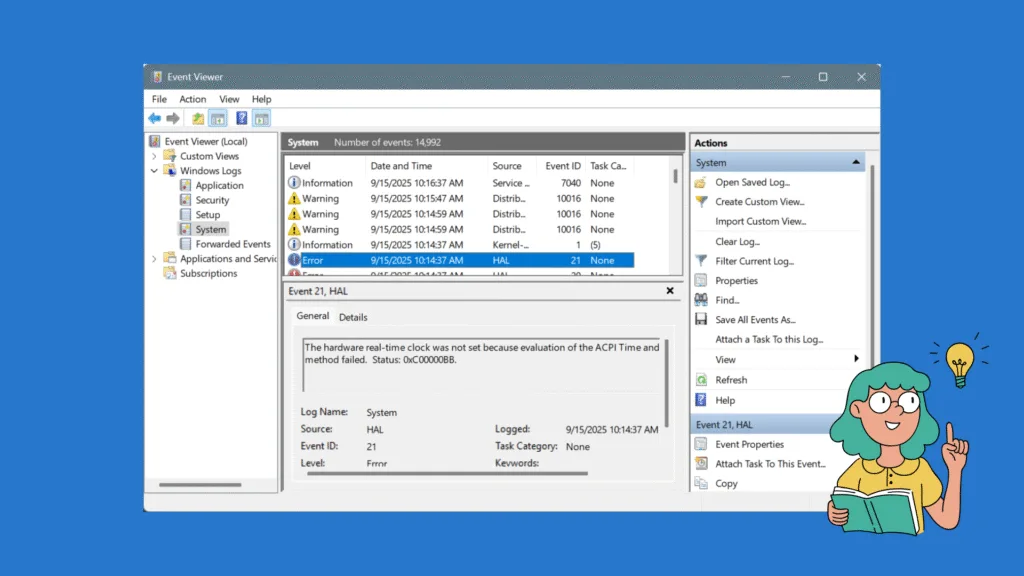
Event Viewer also marks logs with different severity levels so you know how serious each entry is. Understanding these levels helps you quickly filter out system-related information from actual problems that need attention.
Here are the common severity levels you’ll see:
- Information – Normal activity, like services starting or updates installing.
- Warning – Something might be wrong, but Windows is still running fine.
- Error – A problem has occurred that could affect system stability or performance.
- Critical – A serious issue, such as a crash or unexpected shutdown.
By focusing on errors and critical events first, you can troubleshoot effectively while ignoring harmless information logs.
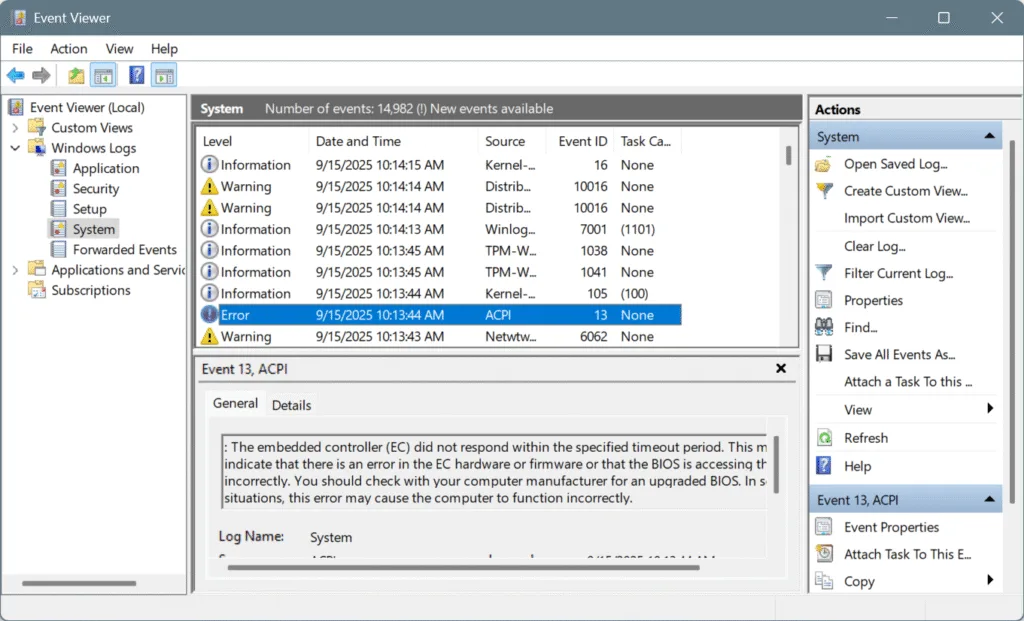
As you can see, there are three severity levels in the above image. Because these are the common ones. On functional PCs that don’t run into frequent crashes, you would rarely find the Critical severity level. And as long as it doesn’t say “Critical“, and your system runs fine, there’s no need to worry.
The “Error” level signals problems, but unless the issue reappears, you can ignore it as a one-time problem!
How to check and understand the log files in Event Viewer?
- Look at key fields first – Each log shows the Date/Time, Source, Event ID, and Level. These tell you when the issue happened, what caused it, and how severe it is.
- Open the event details – Double-clicking an entry reveals two tabs:
- General: A readable summary of the problem. Best for regular users.
- Details: Technical data (useful for advanced troubleshooting). Aimed at administrators.
- Focus on the Event ID – This number uniquely identifies the issue. Searching for it on Microsoft Docs or trusted forums often provides known causes and fixes.
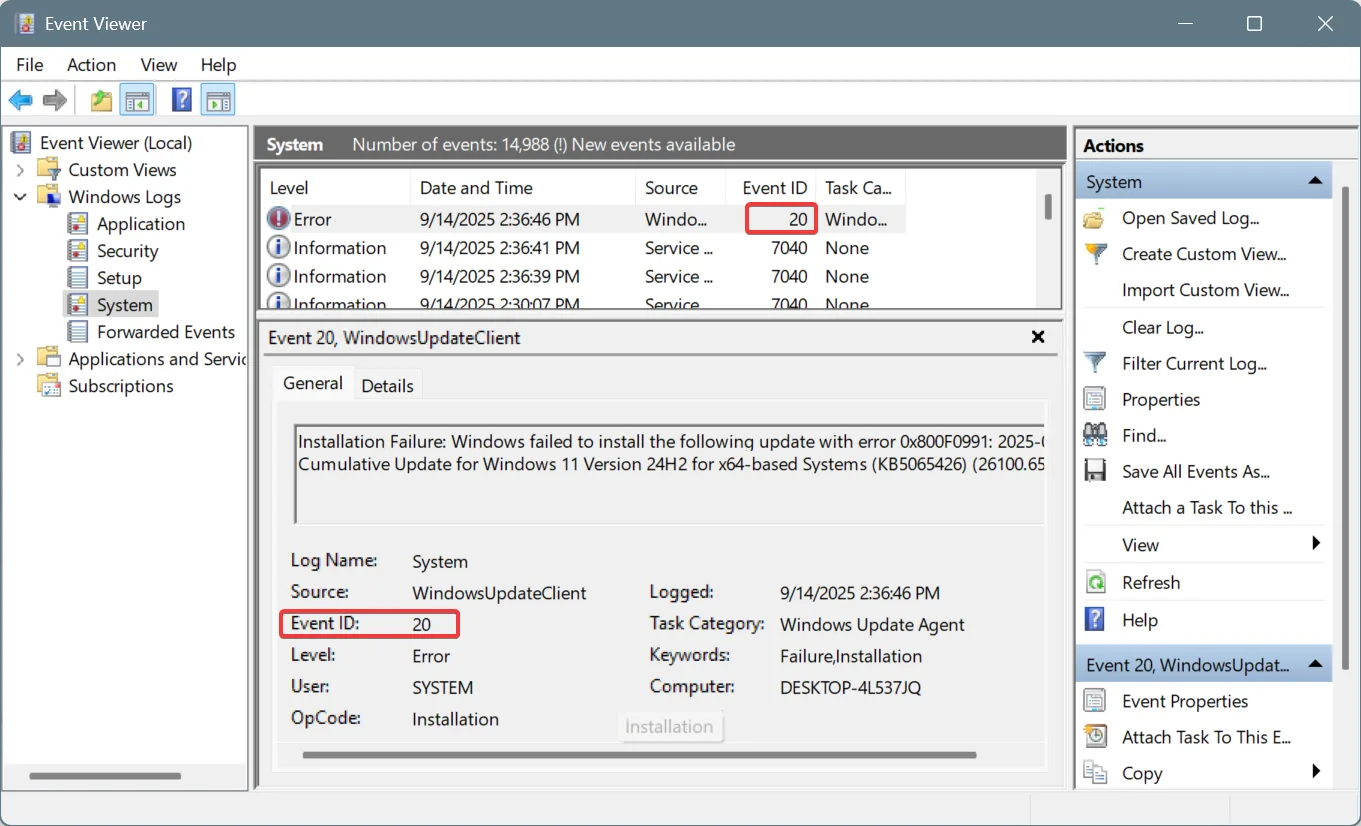
- Check severity levels – Prioritize Error and Critical events for system stability problems; warnings may hint at early issues.
- Correlate events – Compare logs around the time of the issue. For example, a disk error followed by an application crash may point to failing hardware.
- Use patterns – Repeated IDs or errors linked to the same service/device often reveal the real root cause.
Is the Event Viewer safe?
Yes, the Event Viewer is completely safe to use in Windows. It’s a built-in Microsoft tool designed only for monitoring and recording system activity, not for changing or harming your computer.
You are likely to encounter issues only in two cases:
- Making unnecessary changes: Trying to fix issues that don’t exist or making changes that are not recommended, based on logs in the Event Viewer, might get you in trouble.
- The Event Viewer scam: As I have repeatedly said, seeing hundreds of log files in the Event Viewer is not a sign of issues. It’s basic Windows reporting. But scammers often try to mislead, citing the high number of error logs as a sign of system instability, and convince you to make payments. Don’t fall for that!
Frequently Asked Questions
No. Event Viewer is just a viewer for the logs that Windows already records in the background. Opening it doesn’t create extra load or affect system performance.
Yes, logs can be cleared, but it’s usually not recommended. Clearing them won’t fix issues and may erase useful information needed for troubleshooting.
Absolutely. Security logs in Event Viewer track logins, failed login attempts, account lockouts, and changes to user accounts. This makes it a valuable tool for spotting unauthorized access attempts.
That brings us to the end of this guide on Event Viewer in Windows. As you can see, the Event Viewer, if used right, can be a helpful tool in troubleshooting issues (the ones that actually need fixing). And when you try getting too much into it, things can go wrong!
My recommendation is to look through the log files only when you encounter a system or application crash. Even then, too, check the Event ID, verify what it means, find out if it’s a one-time thing or a recurring issue, and only attempt fixing the latter.
Before you leave, discover how Event Viewer is different from the Reliability Monitor, another useful yet unknown tool, in Windows.

With over five years of experience in the tech industry, Kazim excels at simplifying complex topics, making them accessible to tech enthusiasts and general readers alike. He has contributed to several renowned publications worldwide, including WindowsReport and Allthings.how, bringing insightful coverage of key developments in the field.
Kazim has extensively covered the Windows ecosystem, from the early days of Windows 7 to Windows 11. Unlike many in the field, he’s optimistic about Windows 11, calling it the most user-oriented iteration to date.
When he’s not writing, you’ll find Kazim planning weekend getaways or diving into tech verticals beyond his expertise.