To fix “Our systems have detected unusual traffic from your computer network”, disable the active VPN, switch to another network, or reset the network settings. On an iPhone, disable “Private Relay”!
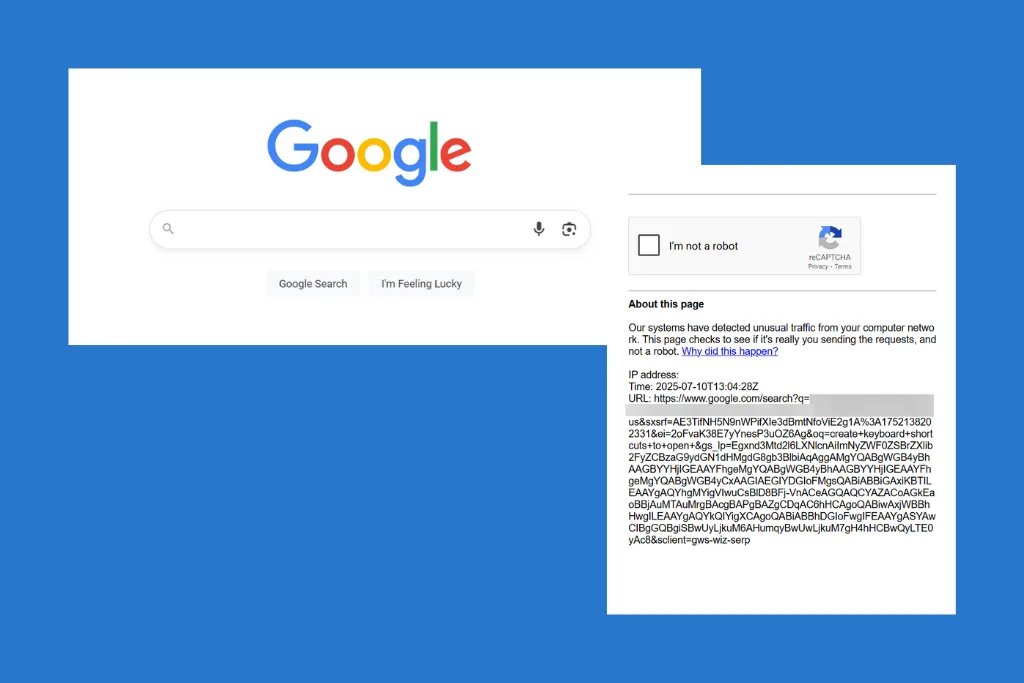
Often, when I search for a query on Google, it returns the “Our systems have detected unusual traffic from your computer network” error, triggering a captcha verification. While I don’t mind a once in a blue moon encounter, frequent appearances of the error are a deterrent to a streamlined search experience. And of late, it’s the latter.
So, this morning, I sat down to find the causes behind the “Our systems have detected unusual traffic from your computer network” error and the fixes that worked for others. Here’s all that I learned!
Why does Google keep saying it detects unusual traffic?
- Performing too many searches in a short span
- Misconfigured network settings
- Running a VPN
- Corrupted browsing data
- The system is infected with malware or a virus
How do I fix detected unusual traffic from my computer network on Google?
1. Use Google’s localized search
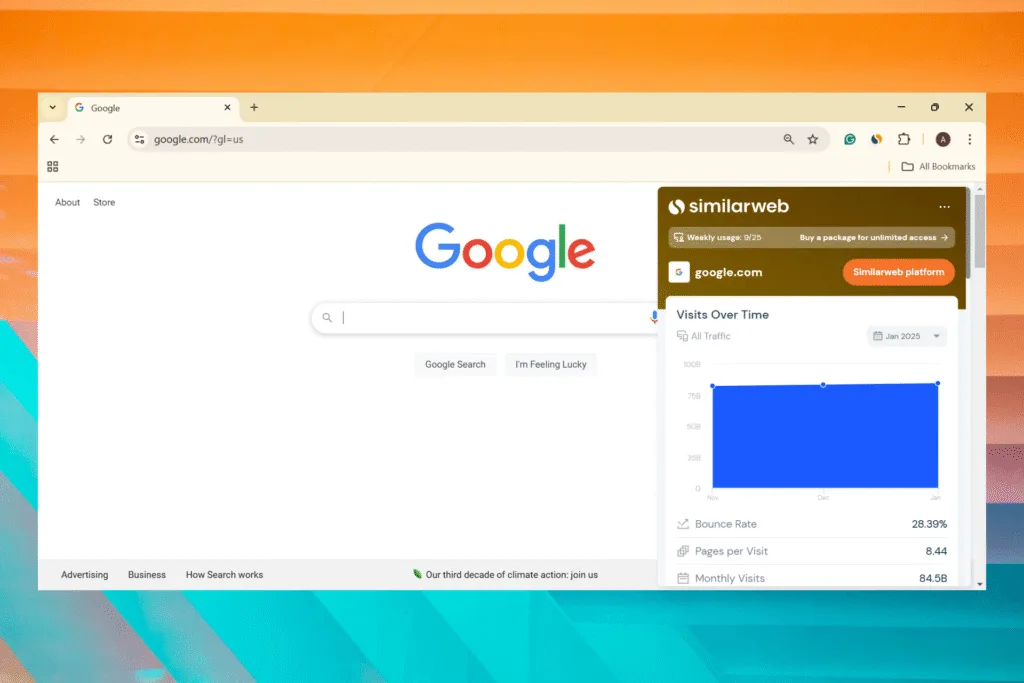
If you are using a search parameter to influence the results on Google, say, trying to get search results from the US using the “https://www.google.com/?gl=us” link, it will trigger the “Our systems have detected unusual traffic from your computer network” error. At least this was the problem for me!
As soon as I switched to “https://www.google.com/“, the captcha verification was gone. So, if you are modifying the search parameters, influencing the search results, or using another region’s domain, you now know what’s causing Google’s unusual traffic error and how to fix it.
2. Connect to another network
The “Our systems have detected unusual traffic from your computer network” Google error is usually triggered on specific networks, especially on public ones. So, a quick fix is to switch networks. If you are on a home network, temporarily switch to a mobile hotspot to get rid of the issue. And if you are using mobile data, connect to a wireless network.
Remember, this doesn’t address the underlying cause and only provides a temporary reprieve from the error. The solutions listed next are to fix the error!
4. Disable active VPNs
In 3 out of 5 cases, a VPN was found to trigger the “Our systems have detected unusual traffic from your computer network” error on a Windows PC or Android/iOS phones. Here’s what happens when you use a VPN: it reroutes your connection through another server. Now, when several users are on the same VPN network, Google will detect it as unusual traffic due to high volume.
So, if you are using a VPN, disable it and check for improvements. In all likelihood, the problem will be fixed!
In case you don’t want to turn off the VPN, consider switching to a server based in another region. If there are limited options, you can purchase a subscription.
However, I don’t recommend that for regular users. If your VPN is the problem, switch to another free one. There are a ton of reliable options out there!
5. Clear the browsing data
If the previous solutions haven’t worked, clearing the browsing data could help fix the “Our systems have detected unusual traffic from your computer network” Google search error. This removes all saved data and cookies for Google on your browser, getting rid of the issue.
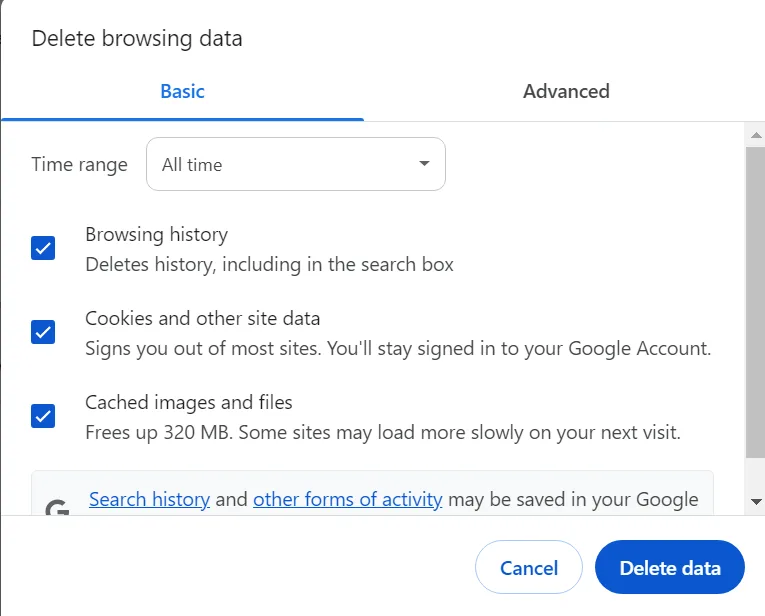
- To clear the browsing data in Google Chrome, open the browser, press Ctrl + Shift + Delete, select All time from the dropdown menu, tick all three checkboxes, and click on Delete Data.
- To clear the browsing data in Microsoft Edge > press Ctrl + Shift + Delete after launching the browser > select All time from the Time range menu > tick all the checkboxes, and click on Clear now.
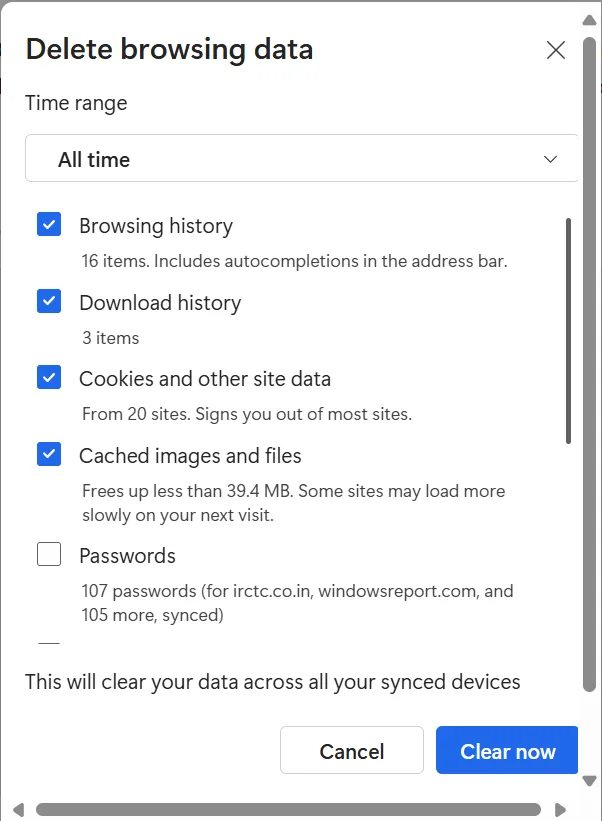
Remember, after clearing the entire browsing data, you will be asked to re-login to all online accounts!
5. Remove Google as the default search engine
As surprising as it may sound, having Google as the default search engine on the browser triggered the “Our systems have detected unusual traffic from your computer network” error for many, and removing it fixed things in no time. You could go with Bing, Yahoo, or DuckDuckGo.
- To remove Google and set another default search engine, open Chrome > go to “chrome://settings/search” path using the address bar > click on Change > select another search engine from the list > and click on Set as Default.
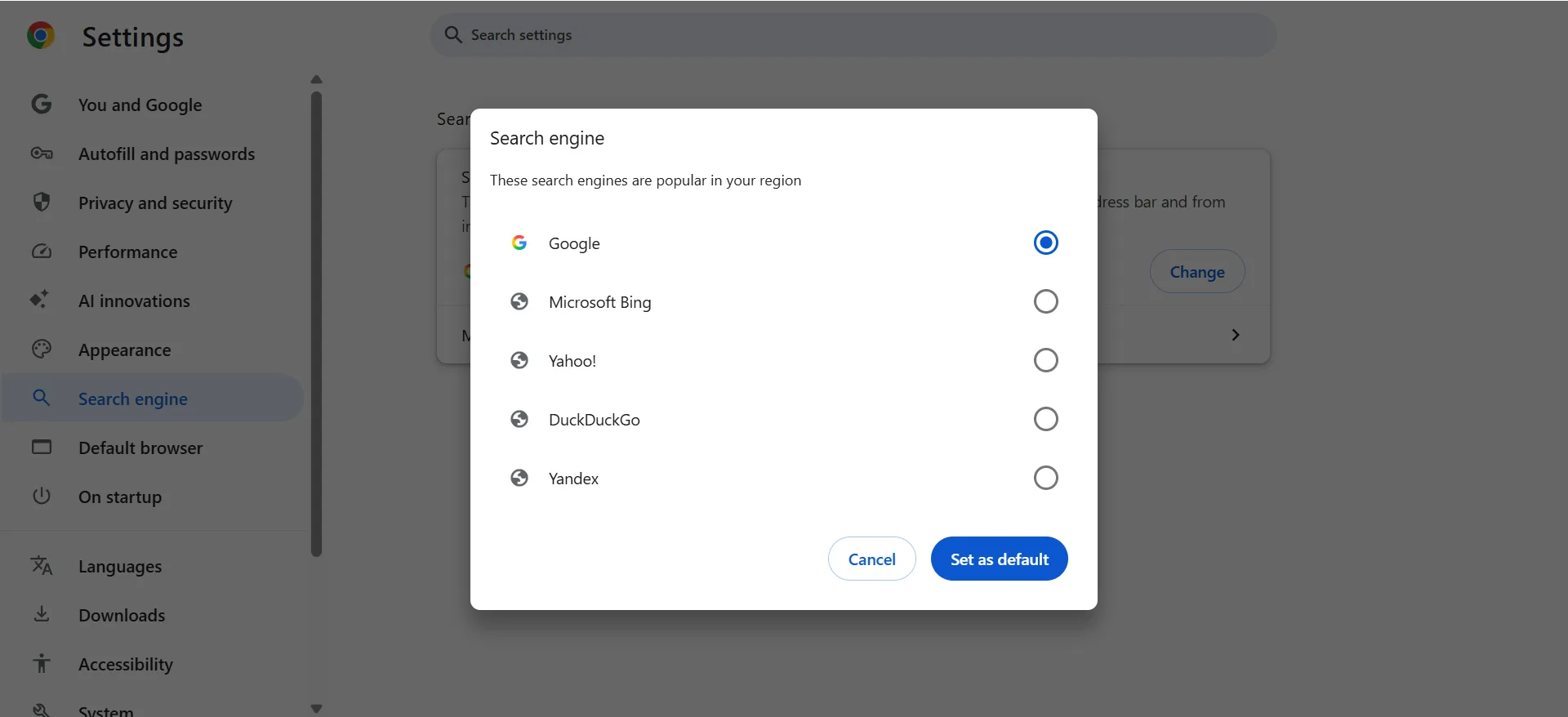
After you have set a new search engine as the default on Google Chrome, it will no longer throw the “Our systems have detected unusual traffic from your computer network” Google error when performing searches.
6. Disable/remove browser extensions
Sometimes, an installed extension interferes with your connection, signalling some sort of anomaly to Google, which then shows an unusual traffic error. This is somewhat tricky to troubleshoot, as you will have to first identify the problematic extension and then remove it. The former takes up the maximum time!
So, disable all active extensions installed on the browser, and check for improvements. If the error doesn’t appear anymore, re-enable the extensions one at a time, followed by performing a Google search. Now, as soon as the error message reappears, the extension turned on last is the problematic one. You can then remove it from the browser!
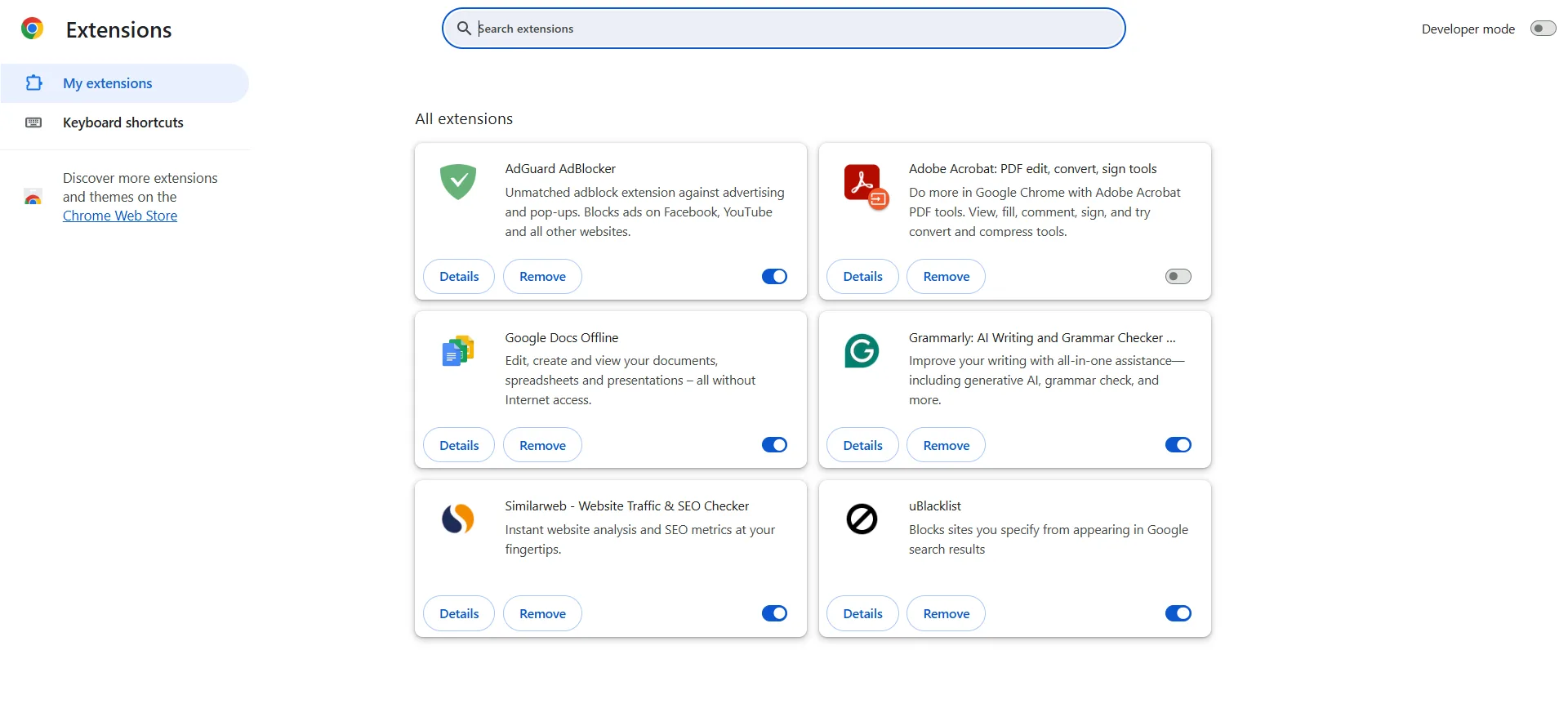
Remember, the same steps work across browsers, be it Google Chrome, Microsoft Edge, Opera, Vivaldi, or Brave. And extensions that generally trigger the error are related to VPN, optimizing the network configuration, or boosting online security.
7. Reset the network settings
When nothing else helps get rid of the “Our systems have detected unusual traffic from your computer network” Google error on a PC, the last option is to reset the network settings. Because, at this point, we can be certain that misconfigured network settings are the underlying cause.
- To reset the network settings on a Windows PC, press Windows + I, go to Network & Internet from the left > click on Advanced network settings > select Network reset > click the Reset now button > click Yes to confirm > restart the computer, and check for improvements.
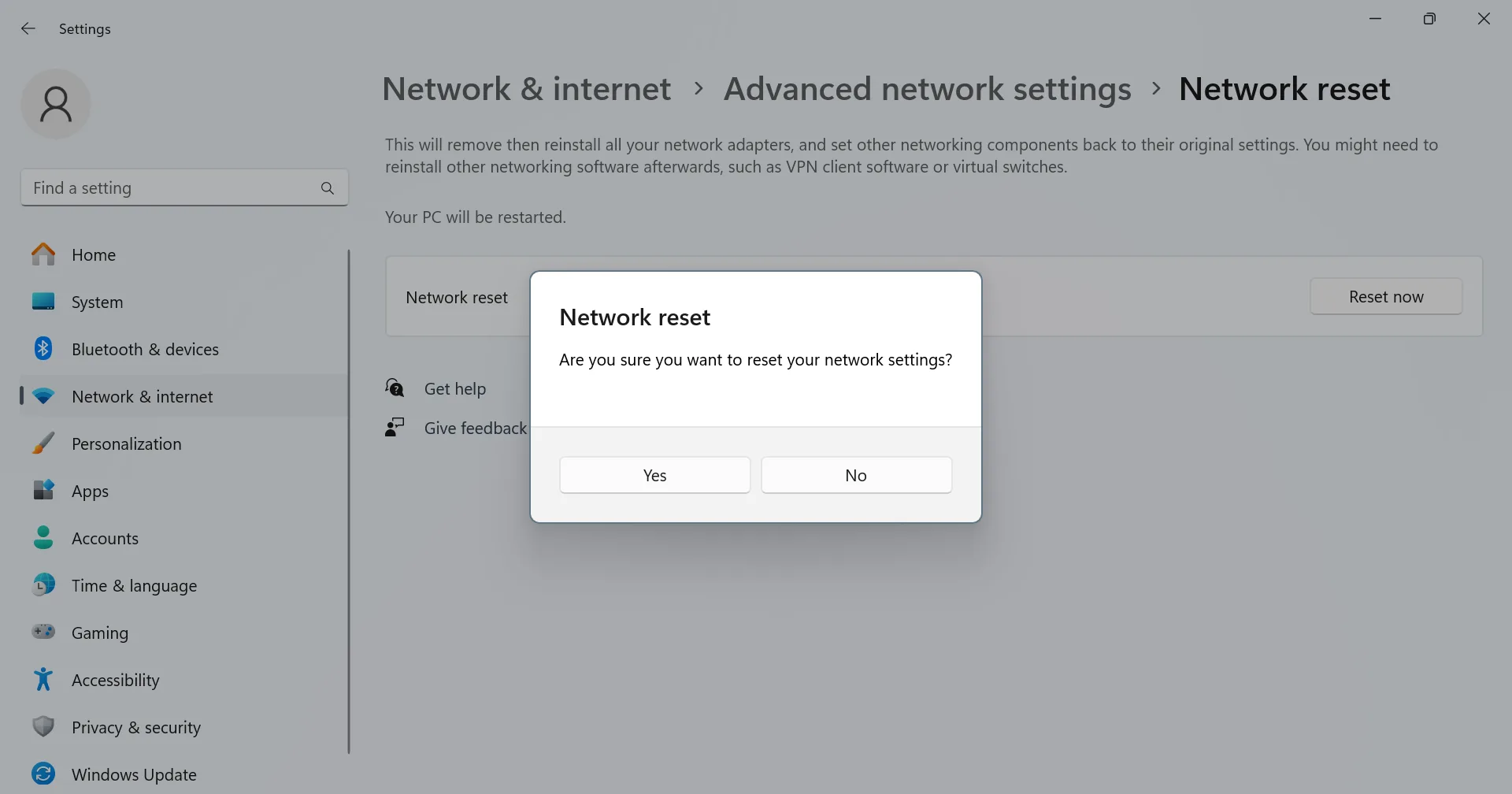
You can similarly reset the network settings on any device, be it a MacBook or a mobile phone. There’s always a dedicated option within the built-in Settings!
Fix “Our systems have detected unusual traffic from your computer network” on iPhone
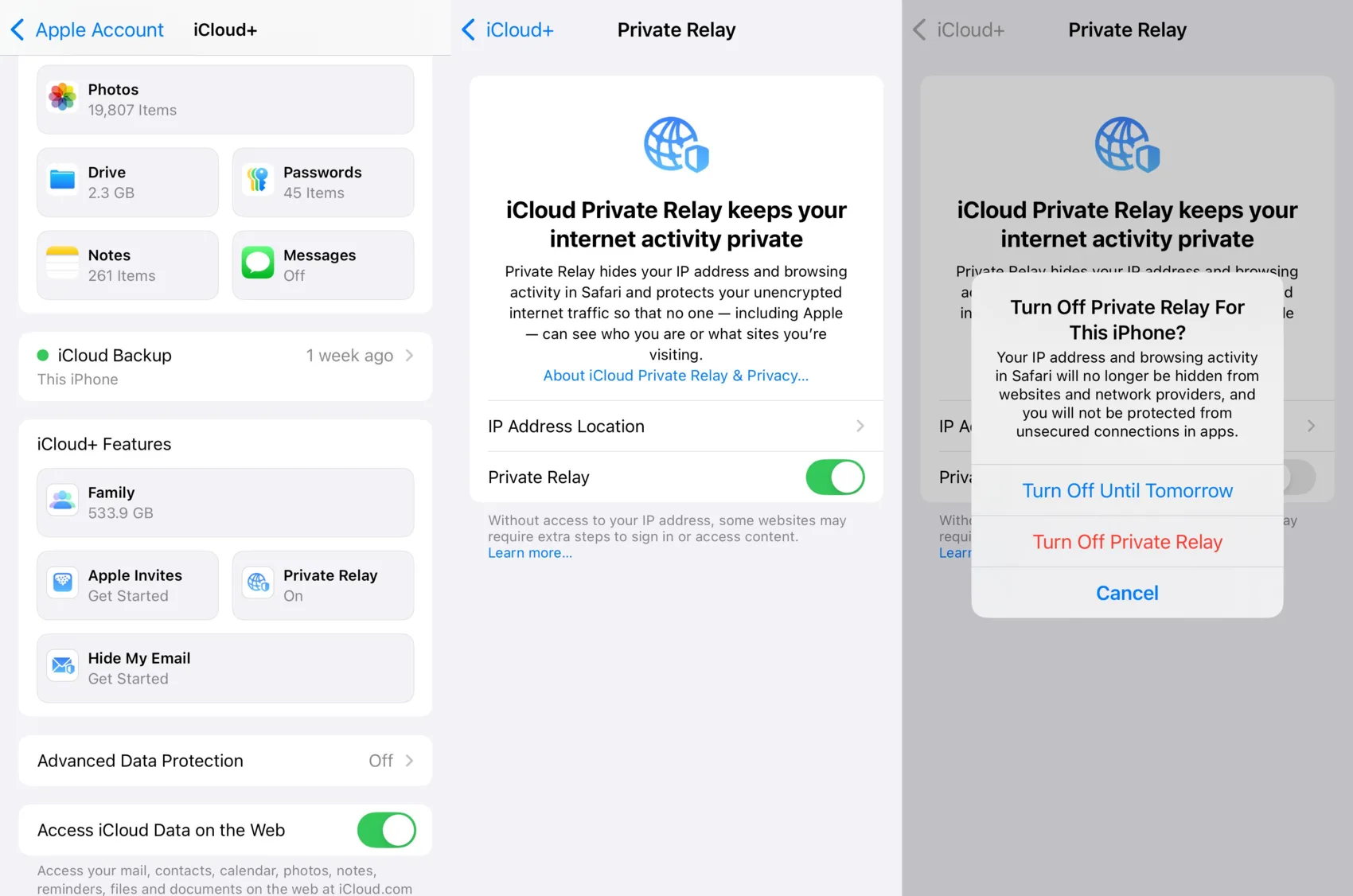
On an iPhone, the “Our systems have detected unusual traffic from your computer network” error is usually triggered by “Private Relay“, a built-in feature designed to protect your privacy on the web and prevent websites from tracking your activity or building your profile. And disabling “Private Relay” will fix the error!
With “Private Relay” enabled, your requests (connection) to Google are routed through two secure relays, which may flag Google’s anti-spam filters.
- To disable “Private Relay” on an iPhone, open the Settings app > tap on your profile at the top > select iCloud > tap on Private Relay under iCloud Features > turn off the toggle for Private Relay > select Turn Off Private Relay in the confirmation prompt.
Having faced it frequently in the recent past, I realize how irritating the “Our systems have detected unusual traffic from your computer network” Google search error can be. But one of these solutions should help you get rid of it in no time!
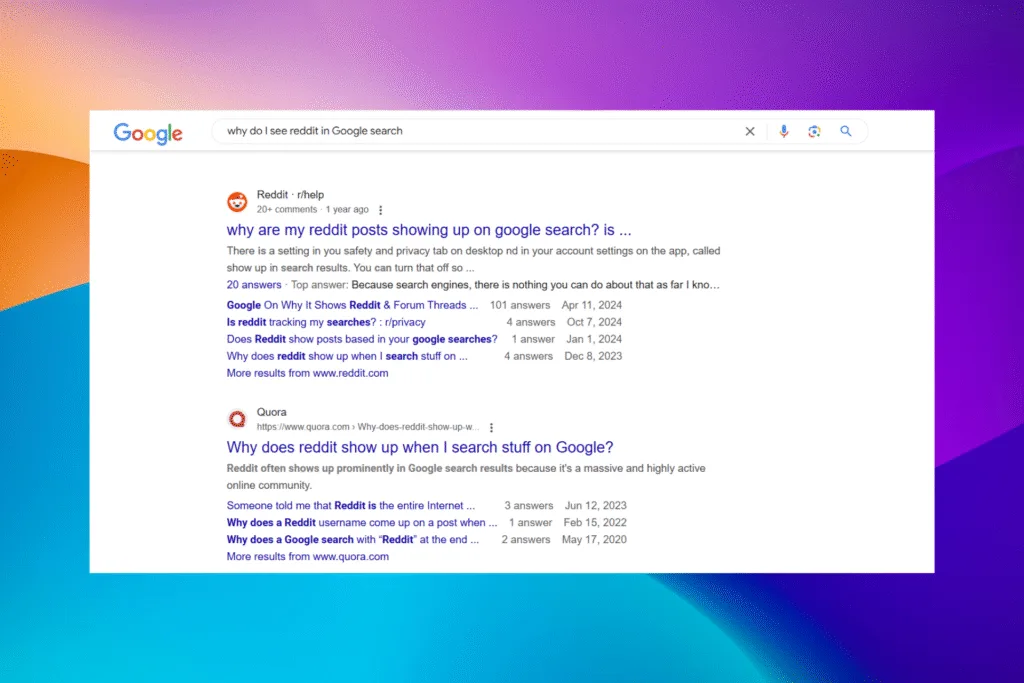
Before you leave, learn how to block Reddit from Google search and find only resource-rich, information-driven results for every query.
What helped you fix the “Our systems have detected unusual traffic from your computer network” error? Share with our readers in the comments section.

With over five years of experience in the tech industry, Kazim excels at simplifying complex topics, making them accessible to tech enthusiasts and general readers alike. He has contributed to several renowned publications worldwide, including WindowsReport and Allthings.how, bringing insightful coverage of key developments in the field.
Kazim has extensively covered the Windows ecosystem, from the early days of Windows 7 to Windows 11. Unlike many in the field, he’s optimistic about Windows 11, calling it the most user-oriented iteration to date.
When he’s not writing, you’ll find Kazim planning weekend getaways or diving into tech verticals beyond his expertise.