Every tech expert out there emphasises manually updating the drivers in Windows, but no one ever talks about the issues it may lead to, especially if you are not so tech-savvy and oblivious to the intricacies involved. Believe me, I have seen countless instances of a driver update gone wrong, especially with the graphics adapter driver, network adapter driver, or audio drivers. But it can all be fixed if you know how to roll back drivers in Windows!
Rolling back a driver update involves installing the previous version of it. It can be done automatically from within the Device Manager or through the manufacturer’s official website. More often than not, the first method should do the trick for you.
So, let’s get started!
How do I roll back Windows drivers?
1. Rolling back a driver with Device Manager
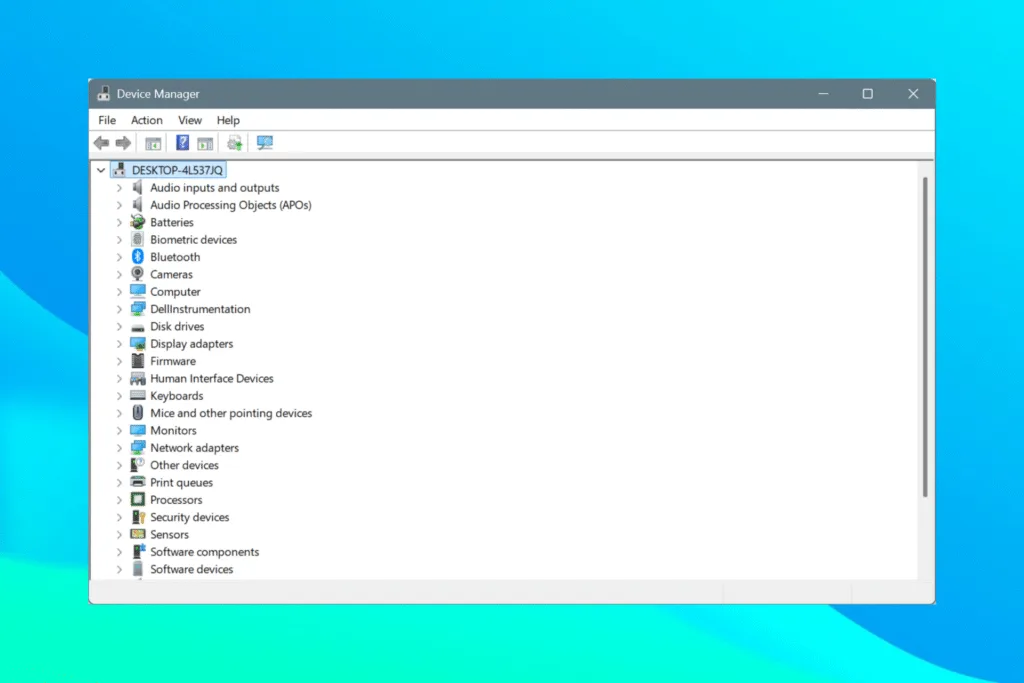
- Press Windows + X to open the Power User menu, and select Device Manager.
- Expand the entries here, locate the device that you want to roll back the driver for, and select Properties.
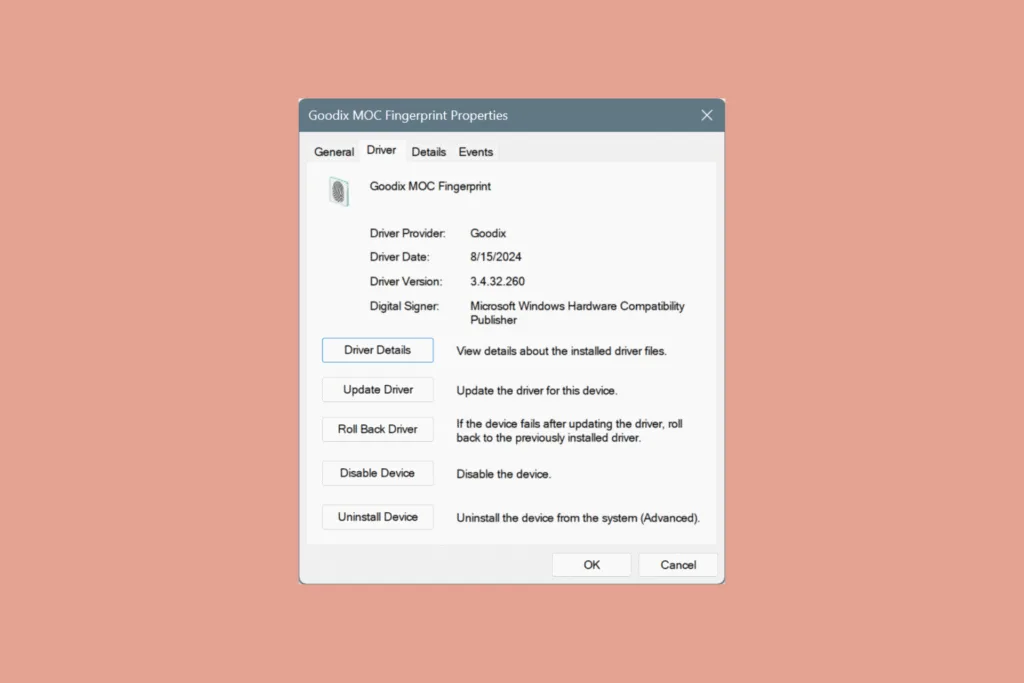
- Navigate to the Driver tab, and click on the Roll Back Driver option.

- Pick a reason for the roll back or specify one in the field towards the end, and click Yes.

- Windows will immediately roll back the driver to the last installed version.
That’s all! It’s this simple to roll back driver updates in Windows for any device.
But there’s a catch!
In many cases, the “Roll Back Driver” option is greyed out. That happens when either the driver wasn’t updated recently or Windows didn’t store the files for it. If it’s the former, there’s not much you can do. However, if Windows somehow lost the driver files for the previous version, you can get them from the manufacturer’s website.
2. Installing previous driver version from the manufacturer’s website
- Open the Device Manager, go to the device Properties, navigate to the Driver tab, and jot down the Driver Version.

- Now, go to the computer manufacturer’s official website, head to the Downloads section, and see if the driver that you are trying to roll back is listed here. If so, check its version and compare that to the one installed on the PC.

- If the two driver versions match, see if there are any available older versions for the driver. There should be one. In this screenshot above, you will find an Older versions option. When I clicked on it, it listed an older version for the Realtek Audio Driver.
- Now, all you have to do is download the setup for the previous driver version, run it, and follow the on-screen instructions to complete the installation.

- Once done with the entire process, restart the computer to fully apply the changes.
This way, you can roll back the graphics driver even if the Roll Back Driver option is greyed out in Windows. As you can see, the entire process took less than 5 minutes, from finding the installed driver version to downloading the previous one from the manufacturer’s website. And if you are using a Dell PC like me, their website’s UI and speed are good!
How can I check the driver update history in Windows?
If you want to view the driver update history, checking Driver Updates in Windows Settings is not the right way. Under this section, you will only find drivers installed via Windows Updates and not the ones through the official website or the manufacturer’s dedicated app, say, the NVIDIA GeForce Experience.
So, to check the driver history or the date when a driver was installed, I recommend viewing the FileRepository folder. Its path is:C:\Windows\System32\DriverStore\FileRepository

Within the folder, sort the entries by Date modified, either in ascending or descending order, and you can then find out when a specific driver was updated or installed. That’s the same as the date it was last modified. In the above example, the highlighted driver is the one for my PC’s webcam, which I recently worked on for a tutorial.
As shocking as it is, there’s no simpler way to view the driver update history in Windows, at least not one that is general knowledge. Not all driver update entries are registered, even in the Event Viewer!
Should I roll back the driver?
You should roll back the driver when:
- Current version introduces instability in Windows or affects third-party apps
- Previous driver version had critical features that are now deprecated
- The PC performance nosedived since the driver update
Remember, you can’t blame a driver simply because problems appeared after you updated it. There are several underlying causes that could trigger the problem. But since identifying them is challenging, rolling back the update is often our primary approach, given the time constraint!
Before you leave, find out how to fix a Blue Screen of Death (BSOD) in Windows, an error commonly linked to corrupted drivers.
For any queries or to share which method worked best for you, drop a comment below.

With over five years of experience in the tech industry, Kazim excels at simplifying complex topics, making them accessible to tech enthusiasts and general readers alike. He has contributed to several renowned publications worldwide, including WindowsReport and Allthings.how, bringing insightful coverage of key developments in the field.
Kazim has extensively covered the Windows ecosystem, from the early days of Windows 7 to Windows 11. Unlike many in the field, he’s optimistic about Windows 11, calling it the most user-oriented iteration to date.
When he’s not writing, you’ll find Kazim planning weekend getaways or diving into tech verticals beyond his expertise.